Ledger Live Connection, Sync and Update Problems Solved
Ledger Live, now called Ledger Wallet, usually just works. When it does not, the cause is almost always small: a cable, a USB port, an outdated app or another program holding the connection.
Your crypto is not at risk during these problems. It stays on the blockchain, and your keys stay on your Ledger device. What you need is a calm checklist. Most issues take less than ten minutes to fix.
Below are the fixes that solve most connection, sync and update issues on Windows, macOS, Linux, iPhone and Android.
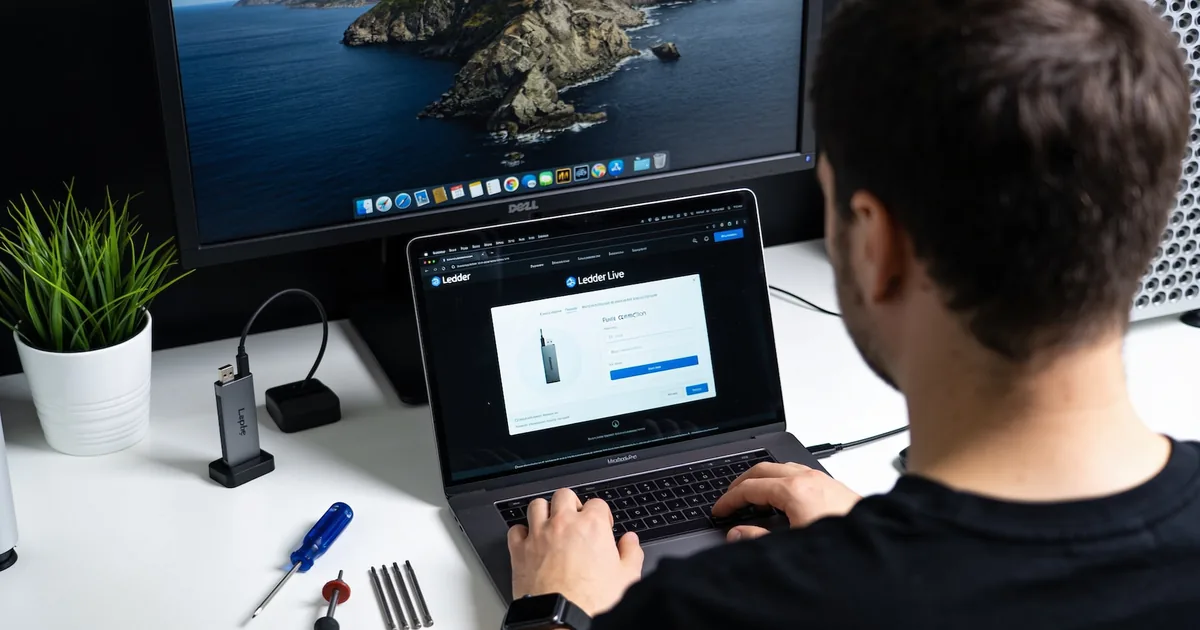
Device Not Detected on Desktop
This is the most common issue. Ledger Live opens, but it does not see your device.
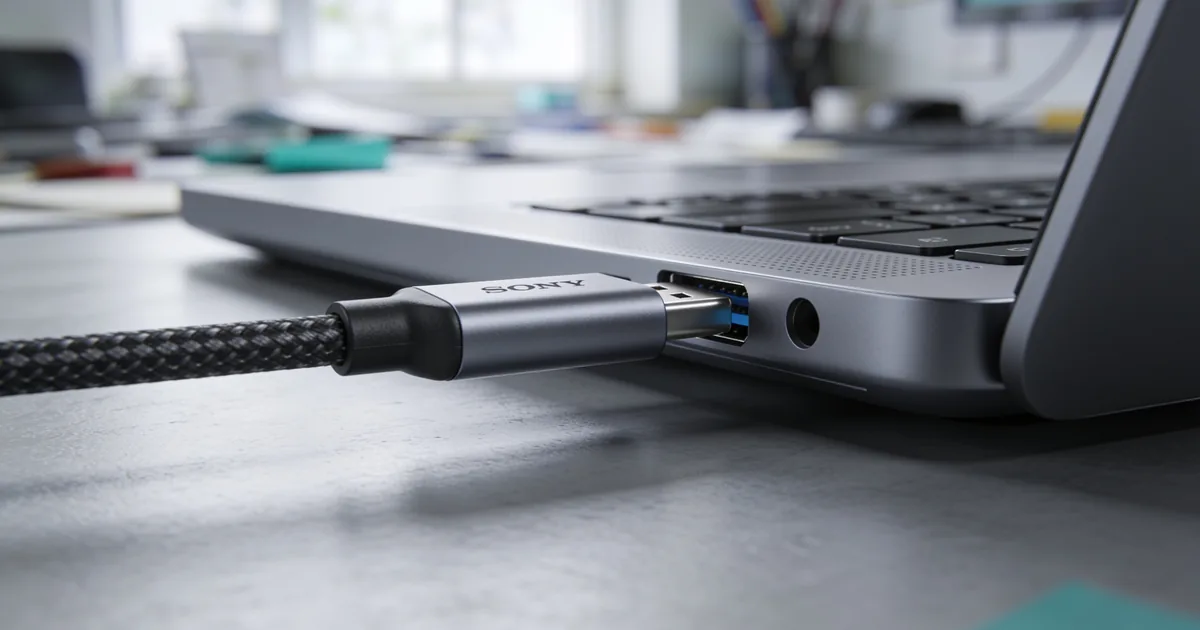
Start with the basics
- Unlock the device with your PIN and stay on the home screen
- Use the original cable or another data-capable USB-C cable
- Try a different USB port, ideally directly on the computer
- Close other apps that use the device, such as browser wallets or other wallet software
- Restart Ledger Live and reconnect
Many cheap cables only charge and do not carry data. That one detail causes a surprising share of support requests. If you are not sure about a cable, test it with another device that needs data, like a phone you connect to transfer files.
System-specific fixes
- Windows: update USB drivers and avoid USB hubs
- macOS: allow Ledger Live in Privacy and Security settings if prompted
- Linux: install Ledger’s udev rules so the system gives the app access to the device
Bluetooth Problems on Mobile
Mobile connections depend on Bluetooth with the Nano X, Nano Gen5, Flex and Stax.
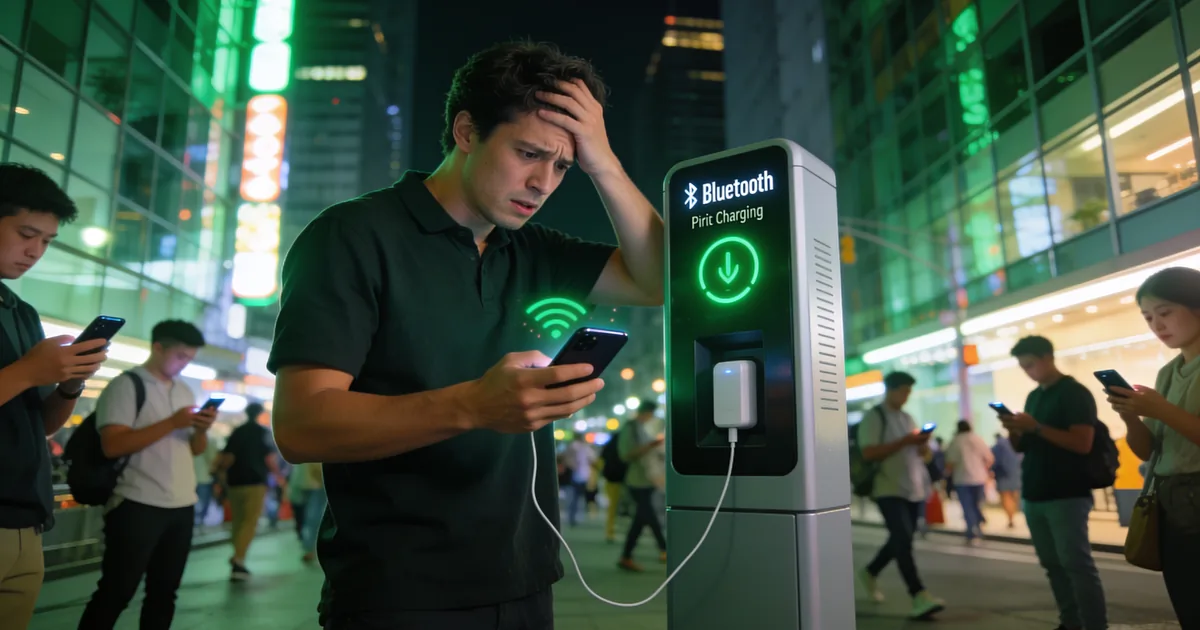
Fixing a failed pairing
Remove the Ledger from your phone’s Bluetooth list, then remove it in Ledger Live too. Restart Bluetooth, unlock the device and pair again from the app, confirming the code on both screens.
Permissions to check
- Bluetooth permission for Ledger Live in phone settings
- Location permission on some Android versions, which Bluetooth scanning needs
- Battery saver modes that can cut the connection
Firmware Update Stuck or Failed
Firmware updates run from My Ledger in the app. They usually take a few minutes, and the device asks you to confirm.
Before you update
Have your 24-word recovery phrase at hand, keep the device charged and use a stable cable. You will almost never need the phrase, but it is your safety net.
If the update stops
Do not panic and do not unplug in the middle of a write step. Keep the computer from going to sleep during the update as well. If it hangs for a long time, restart Ledger Live and reconnect. The app usually resumes or restarts the update. If the device boots into a recovery mode, follow the steps shown on support.ledger.com for your model.
Sync Errors and Missing Balances
Sometimes the app loads, but a balance is wrong or an account shows an error.
Quick fixes
- Check that the app is updated to the latest version
- Go to Settings, then Help, and clear the cache, which re-syncs accounts without touching your crypto
- Make sure the account was added for the right network, for example Ethereum vs Base
- Check the address on a block explorer to confirm the funds are there
Tokens not showing
Some tokens appear only after you add the account for that network. Spam tokens are hidden on purpose. If a token you bought is on the blockchain but not in the app, it may be unsupported, and you can still see it on a block explorer.
Conflicts With Other Wallets and Apps
Your Ledger can work with Ledger Live and with third-party wallets like MetaMask or Rabby. Problems start when two apps try to use the device at the same time.
Using Ledger Live and a browser wallet
Close Ledger Live before you sign with your Ledger in a browser wallet, and the other way around. Only one app can talk to the device at a time. Open the right coin app on the device, for example Ethereum, before signing in a third-party wallet.
Keep everything updated
- Update Ledger Live when the app shows a banner
- Update firmware from My Ledger when a new version is available
- Update coin apps on the device, which Ledger Live offers after firmware updates
- Keep your operating system and browser up to date
Errors When Sending or Signing
Sometimes the connection works, but a transaction will not go through. The message usually tells you what is wrong, if you know how to read it.
Common transaction errors
- Not enough balance for fees: keep some of the network’s native token, like ETH, for gas
- Transaction rejected on device: you or the device declined it, simply try again
- Wrong app open on device: open the app for the coin you are sending, for example Bitcoin or Ethereum
- Device locked during signing: unlock it and start the transaction again
Signing prompts in third-party dApps
Most transactions now show readable details through Clear Signing. For some smart contracts that are not yet supported, the Ethereum app may ask you to allow blind signing in its settings. Turn it on only when you trust the dApp, and turn it off again afterwards.
Mobile App Problems
The mobile app has its own set of issues, mostly linked to phone settings and storage.
When the app crashes or freezes
- Update the app from the App Store or Google Play
- Restart your phone
- Clear the app cache from the app’s settings
- Reinstall the app if nothing else helps
Reinstalling does not affect your crypto. Your accounts come back after you connect your Ledger or turn on Ledger Sync.
Accounts missing on mobile
If your phone shows fewer accounts than your computer, turn on Ledger Sync on both and approve it on the device. Otherwise, add the missing accounts on the phone manually.
When to Contact Ledger Support
If nothing on this page helps, Ledger Support can look at logs and device details.
How to reach real support
- Open a ticket through support.ledger.com
- Export the app logs from Settings if support asks for them
- Ignore anyone who contacts you first on social media or by phone
- Never share your recovery phrase or allow remote access to your computer
Fake support accounts reply within minutes to public complaints. Real Ledger staff never ask for your 24 words. If someone asks you to install remote access software, download a “fix” or move funds to a “safe wallet”, stop talking to them right away.
Trust and Official Sources
Ledger has built hardware wallets since 2014 and reports more than 8 million customers. Keeping the app and firmware official is the best protection against both bugs and scams.
Security facts
- Firmware is signed by Ledger, and the device verifies each update
- Genuine check confirms the device is authentic
- Secure Element chips certified CC EAL6+ on Nano S Plus, Nano Gen5, Flex and Stax, CC EAL5+ on Nano X
- Download Ledger Live only from ledger.com and official app stores by Ledger SAS
- Warranty applies to devices bought from Ledger or authorized resellers, with terms by country
Further Documentation in This Edition
Companion guides and technical tutorials from Hardware Node & Firmware Digest:
- Ledger Download: Secure Setup And Daily Use Guide Ledger Download explains how hardware wallet software is obtained, verified, and used for daily tasks like sending, receiving, staking, and balance tracking.
- Ledger Live Guide To Daily Crypto Portfolio Management Ledger Live supports everyday crypto portfolio management, from sending and receiving assets to tracking balances, managing accounts, staking, export history.
- Ledger Wallet: Daily Crypto Portfolio Management Guide Ledger Wallet explains daily crypto portfolio management, secure sending and receiving, account organization, staking, balance tracking, transaction history export.
Frequently Asked Questions
The most common causes are a charge-only cable, a locked device or another app using the connection. Unlock the device, use a data cable and close other wallet apps.
Yes, your crypto stays on the blockchain and your keys on the device. You can reinstall the app or use another computer without losing anything.
Go to Settings, then Help, and choose Clear cache. The app re-syncs your accounts, and your crypto and device are not affected.
Restart Ledger Live, reconnect the device and try again. If the device stays in recovery mode, follow the official guide for your model on support.ledger.com.
Usually it is a sync delay or the wrong network account. Clear the cache and check the address on a block explorer.
Yes, but not at the same time. Close one app before using the other, and open the matching coin app on the device first.
You probably lack the native token for fees, such as ETH on Ethereum or Base. Add a small amount of it, then try the transaction again.
Bluetooth fails mostly due to old pairings or missing permissions. Remove the pairing on both sides, check permissions and pair again.